


Turn Any Photo Into Pop Art in Seconds
You can turn any photo into pop art in seconds using Blend’s AI pop art editor — no design skills needed. Upload your image, choose a style like Warhol-inspired color blocks, Lichtenstein comic halftone, or high-contrast posterization, and download your result instantly. The process takes under a minute and works on portraits, pets, products, and landscapes.
Pop art has always been more than just a visual style. It is a communication tool for many artists. Comic creators use it to exaggerate emotion and action. Illustrators lean on it to make characters instantly recognizable. Today, modern content creators and eCommerce brands use it to grab attention and make their photos look more appealing.
When you turn photo into pop art, you are not just making something look different. You are creating something memorable. A simple portrait can start to feel like a comic panel. If you want to know how to turn photo into pop art for free, scroll down and find out. With the Blend app, you can create a simple portrait into a comic panel in just a few seconds.
What Is Pop Art?
Pop art is a visual style that emerged in the 1950s and 60s, pioneered by Andy Warhol and Roy Lichtenstein. It transforms everyday subjects into bold, graphic artwork using flat color blocks, strong outlines, halftone dot patterns, and high-contrast color schemes.
Converting a photo to pop art replicates these techniques digitally by replacing photographic gradients with simplified shapes, vivid color fills, and screen-print aesthetics. Today, AI tools can automatically change photo to pop art from a single uploaded image.
RELATED READING: AI Visual Playbooks for Artists Who Sell on Etsy and Print-on-Demand
Why the Pop Art Trend is Here to Stay
There is a reason this trend hasn’t faded. When you turn a pic into pop art, you are not just editing. You are transforming something ordinary into something visually magnetic.
Pop art works because it exaggerates reality in the best way possible. In pop art:
- Colors are bolder
- Contrast is sharper
- Details are simplified
Every pop art has the ability to grab anyone’s attention. Also, they are incredibly versatile. A single image can become a statement piece, a profile photo, a marketing visual, or even a print-worthy design.
For content creators, comic artists to illustrators, graphic designers, and brand owners, pop art is the kind of visual punch that makes a difference.
How to Turn a Photo Into Pop Art with Blend (Step-by-Step)
The Blend app is built for people who want high-impact results without the friction. You don't need to be a graphic designer to get a studio-quality pop art portrait or canvas. Here is how you can turn photo into pop art with Blend:
1. Remove Background
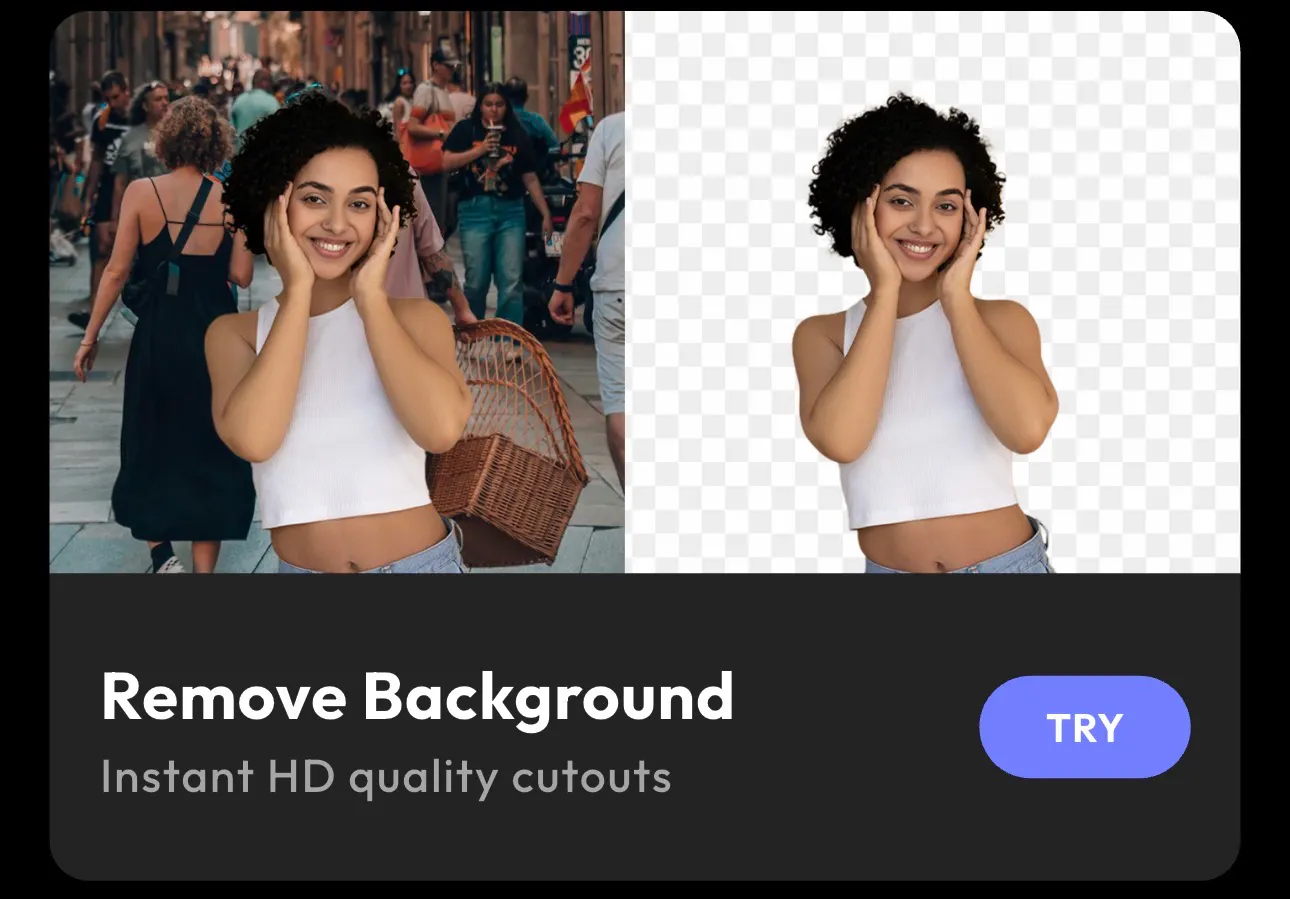
Before you even think about turning your image into pop art, you need a clean subject. Busy backgrounds can attract attention. That’s why the first move is always to isolate your subject.
Removing background with Blend is almost effortless. You upload your photo, and within seconds, the background disappears, leaving you with a sharp, high-quality cutout. No awkward edges, no manual tracing, no zooming in to fix tiny details.
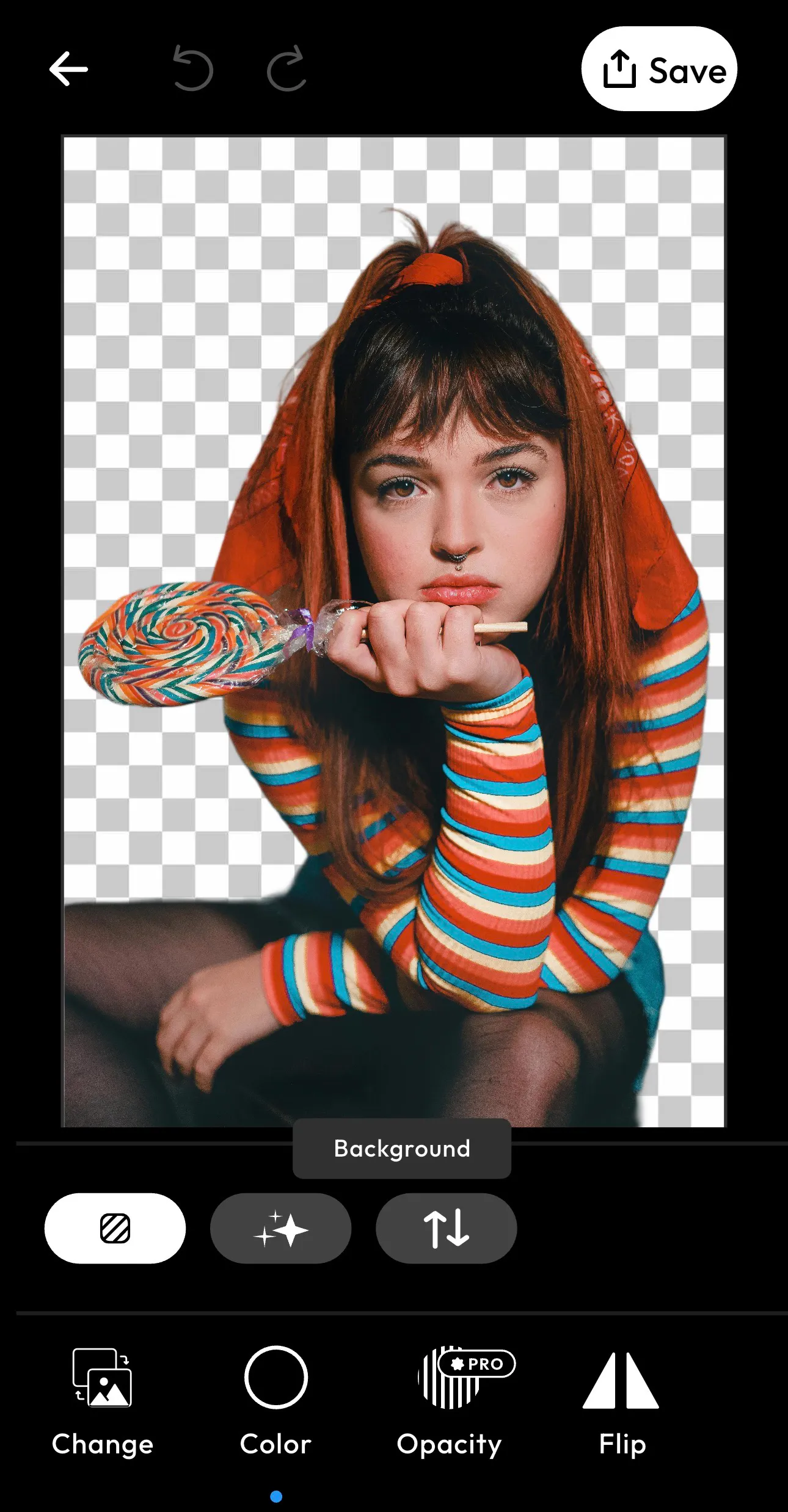
2. Change Background Color to Gradient
Now comes the part where your image starts to feel like pop art. Pop art thrives on bold, flat, and high-contrast backgrounds. A gradient is one of the easiest ways to achieve that instantly.
Instead of a realistic setting, you will place your subject into a controlled, stylized environment that amplifies color and mood. After removing your background, you can swap your background with a gradient in just a few clicks.
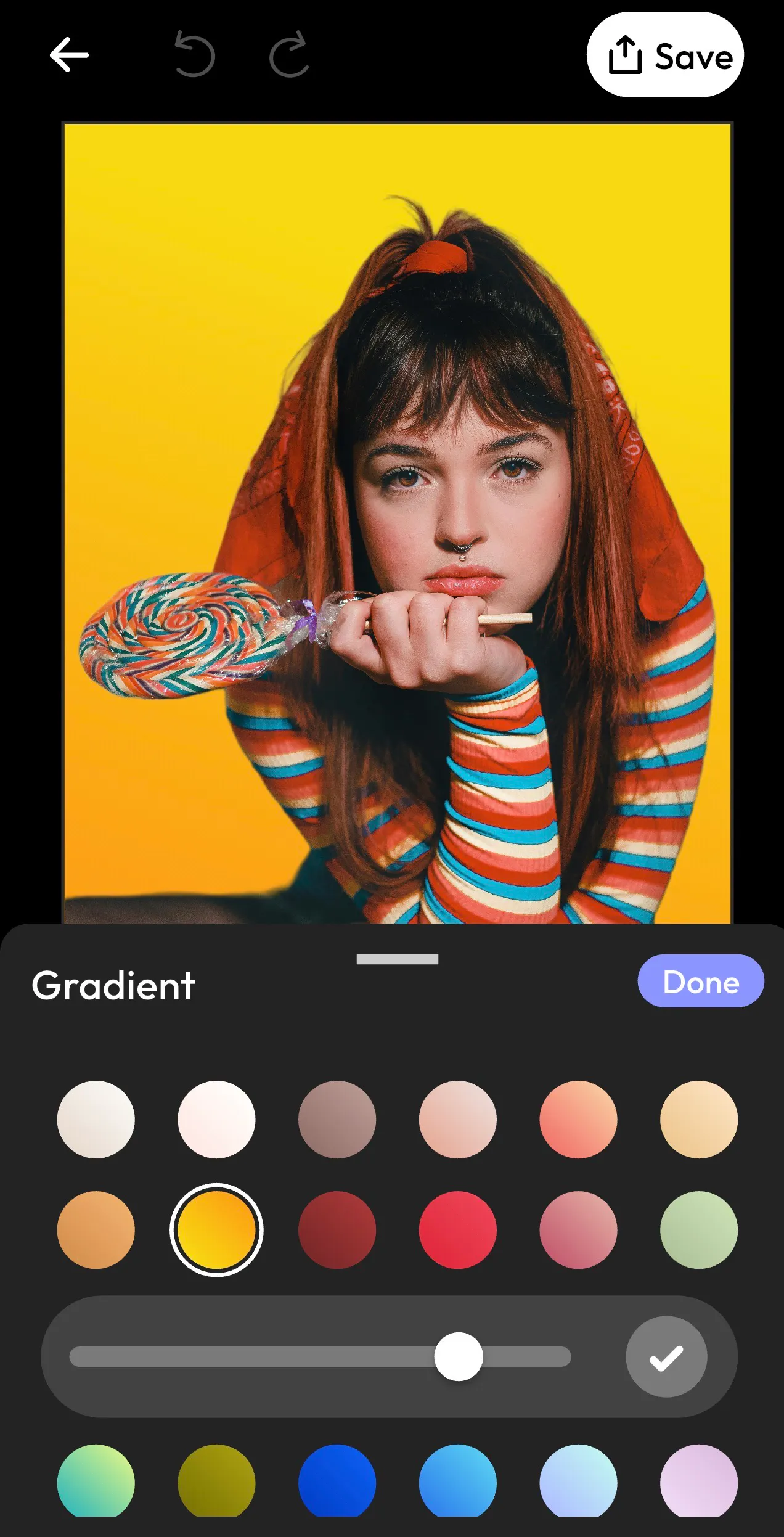
You can go for something loud, like a yellow-to-orange blend or experiment with cooler tones depending on the vibe you want. The key is contrast. The more your subject stands out, the more impact your image has.
This step is what transforms a simple cutout into something intentional. It’s also where a lot of people start to see the difference between a basic edit and a visual that actually feels designed.
3. Use DesignGPT to Create Pop Art
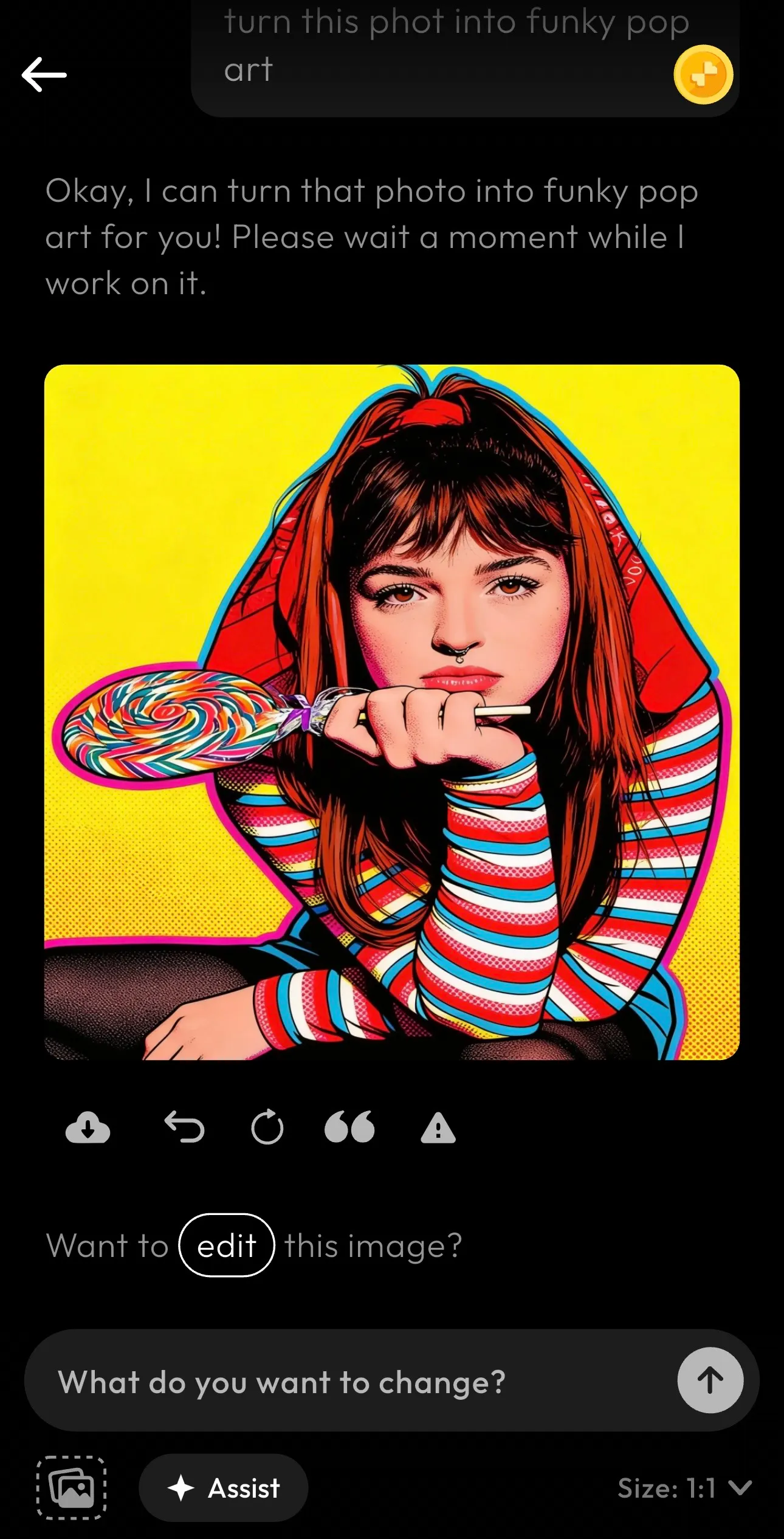
Now comes the part where everything clicks. At this point, your image already looks cleaner and more intentional but it’s not quite pop art yet. What it needs is style. Texture. That signature comic-book energy. This is where Blend’s DesignGPT feature does the heavy lifting.
Instead of manually layering effects or figuring out how to turn a photo into pop art in Photoshop, you simply tell DesignGPT what you want. Something like: “turn this photo into funky pop art” and it gets to work.
Within seconds, your image transforms with bold outlines, punchy colors, and those classic halftone-style details that define pop art. From here, you can tweak, experiment, or export. But the hard part is over. Blend gives you ready-to-use pop art in seconds.
Here is a before and after comparison:

Take a look at some more pop arts I created using Blend:
Pop Art Styles You Can Create
Andy Warhol Style
Inspired by Andy Warhol’s iconic portrait prints, this style uses repeating panels and bold flat colors for a retro pop-art effect.
Roy Lichtenstein Comic Style
Inspired by Roy Lichtenstein, this style includes thick outlines, comic-book textures, and Ben-Day halftone dots.
High-Contrast Posterization
This style reduces your image into bold color zones, making it ideal for social media graphics, posters, and marketing visuals.
Each style is available in Blend’s pop art generator and can be applied with one click.


RELATED READING: Best AI Design Tools for E-Commerce Sellers in 2026
Blend: A Complete Creative Suite for Brands
At first glance, you might use Blend just to give a single photo that classic pop art flair. But once you spend a little time in this app, you will. realize it is built to handle much heavier creative lifting, especially for eCommerce and branding.
If you run an online store, the same Blend app that you used to create a pop art, can also solve problems that usually require an entire production team. In fact, the platform can itself become your personal production team. It has all the features, such as:
- AI Model Try-Ons: Generate digital visuals of clothing and accessories on virtual models, giving customers a realistic view without the cost of a physical photoshoot.
- Lifestyle Shot Photography: Generate professional, highly realistic lifestyle scenes for your products.
- Social Media Content & Branding with Videos: Easily turn static product shots into dynamic reels using AI Videos feature, or generate a custom logo to tie your visual identity together.
Instead of jumping between many apps and spending money on photoshoots, you can build a unified visual system in one place.
FAQs
How can I change photo to pop art online?
You can change photo to pop art online using Blend’s AI editor. Upload your image, choose a pop art effect, customize the style, and download your final artwork instantly.
What is the best app to turn photo into pop art?
Blend is an easy-to-use app to turn photo into pop art because it combines AI effects, background editing, and comic-style filters in one place.
Can AI convert photo to pop art automatically?
Yes. AI tools like Blend can automatically convert photo to pop art using bold outlines, halftone effects, and vibrant color palettes.
How do I turn photo to pop art for free?
Simply upload your image to Blend, choose a pop art style, and let the AI generate your artwork in seconds.
Conclusion
At the beginning, all you wanted was a way to turn a photo into pop art. Something quick, maybe even fun. And yes, you can absolutely do that. But with Blend, what you have found is something more useful. It’s a platform that lets you create without hesitation and experiment without pressure.